
To get access to your course Canvas page, contact the Classics Registrar. Canvas is mostly but not always intuitive. The Poorvu Center is available for Canvas support if you have questions or want to do something complicated with your page. Feel free also to ask me or any other graduate student who has served as PTAI for help.
Teachers integrate Canvas more or less into their teaching. It is a great idea to learn all the secrets of Canvas, but it is also just fine to keep it minimal. Students usually do not like multiple course sites (e.g. Canvas and Padlet and Google Sheets and Flipgrid and WordPress). Canvas works with a number of clever applications. If you use one that Canvas does not support, always link to specific external assignments in Canvas so that Canvas remains your reliable homepage.
At the very least, use Canvas for announcements (including daily homework assignments), the gradebook, and course documents (I use Modules for this, not Files—see below). I suggest removing all unneeded page options from your course menu. To do this, go to Settings at the bottom of the left menu within a course Canvas page. In Settings, go to Navigation in the top menu. I hide all items except Home (which I set to “Course Activity Stream” so it shows announcements and due dates), Announcements, Assignments, Grades, Modules, and People. The students, then, have this as their course Canvas page:
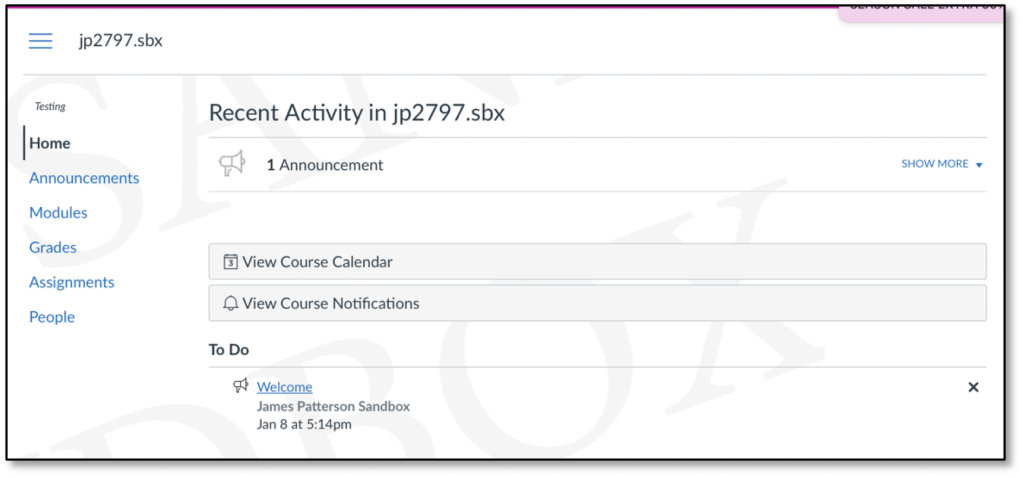
It’s not pretty, but it’s simple, and it works.
Use Announcements to post homework for the next day, even if you are sure everyone knows what it is, or if there is no homework (remind them there’s nothing to do), and post as soon after class ends as possible. You cannot expect students to complete an assignment you post the evening before class. Also use Announcements to follow up on / clarify anything left hanging at the end of class that day and to advertise and all Classics events.
Ideally you will take detailed notes after every class about how things went, what deviations you made to your schedule, etc. for future refence (revising syllabi, preparing to teach the course again). Posting announcements regularly has the added advantage of creating a record of what you did every day in the inevitable case that you forget.
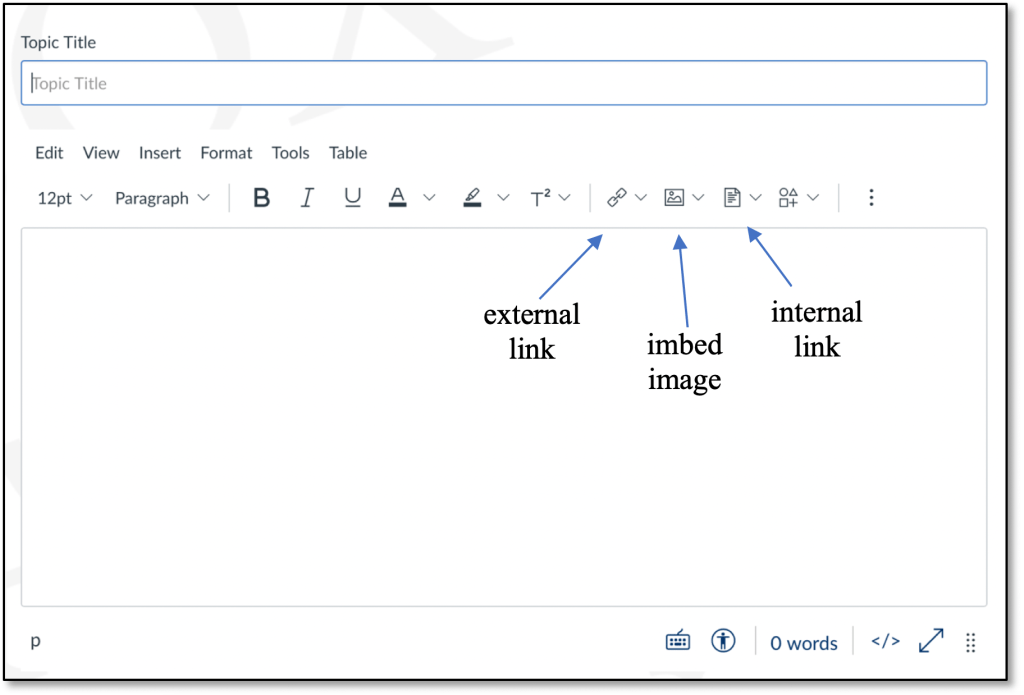
When composing an announcement, you may add external links with thumbnails, imbed images, and link to internal folders and files:
Use Assignments to create your gradebook. The Grades page is only for adding grades themselves, and assignments must be there first to do this. To do this, first create groups for each type of assignment with a different share of the total grade. The following, for instance, is currently sufficient for L1 and L2 GREK and LATN, where total quizzes = 40% of the final grade (each quiz weighed the same), two midterms = 30% (each worth 15%), the final = 20%, and participation 10%:
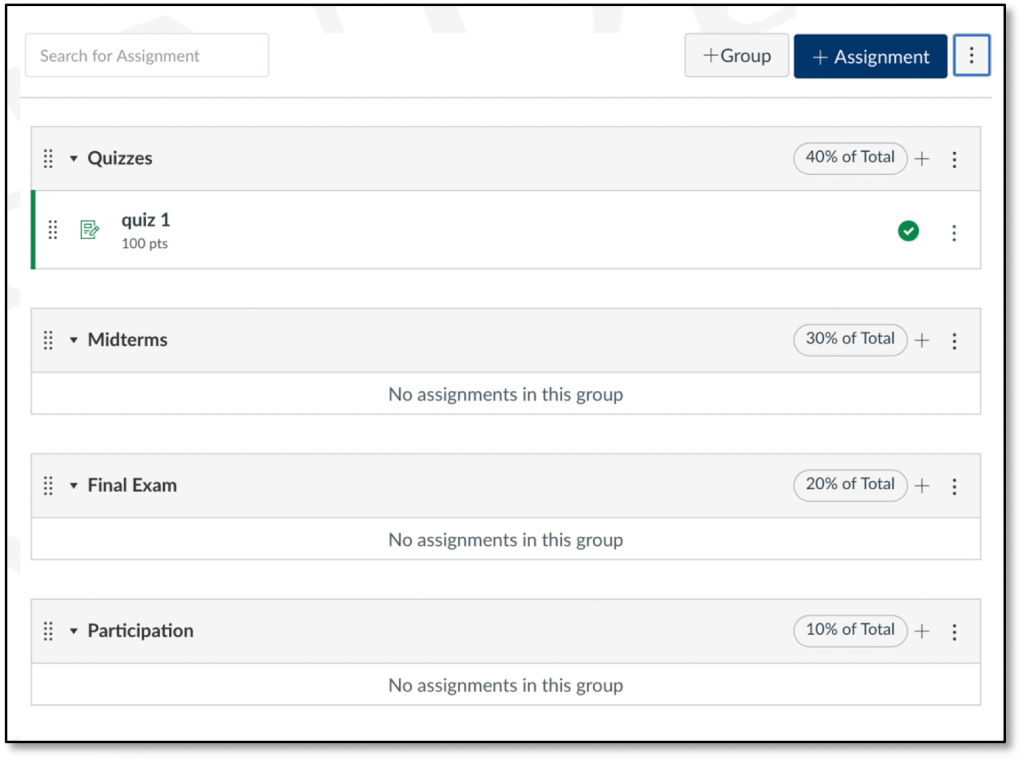
(Note: we are changing the distribution a bit, but the point remains about using this function.)
To weigh the sections, click the three-dot button to the right of Assignment on the top right. It will be intuitive from there:

To add an assignment, like a quiz, as I have done above, click the + to the right side of the group header (just right of the “X% of Total” notice), not the big blue Assignment button above the groups. I assign 100 points to all quizzes, no matter their length, entering the percentage as the grade, not the raw points (e.g. 7 of 8 and 14 or 16 raw points both equal 87.5/100). This means that items on one quiz may weigh more or less than items on another, but it allows students to keep more easy track of their grade. In fact, I have received complaints when I haven’t done grades this way. You are welcome to distinguish between, say, longer (100 points) and shorter (50 points) quizzes if you wish, but you should note the distinction in your syllabus and still enter grades as percentages, not raw points. I would not get more complicated than that.
To add a grade on a particular assignment, once the assignment is created under Assignments, go to Grades and enter the number earned in the appropriate box:
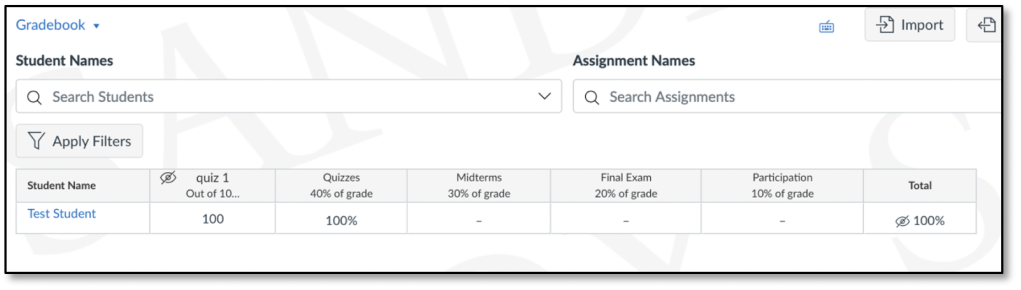
Do not leave a box blank for a student who misses a quiz. Give the student 0. Canvas uses available numbers to calculate final grades. For instance, if a student gets 100 on two quizzes but misses the other 8, and if you leave those other 8 as blanks rather than giving them 0, Canvas will give the student 100% for quizzes. To drop some number of lowest quizzes, see two images above where you weighed groups.
Once you have entered all grades for an assignment, you will need to post grades for students to see. Click the three dots right of the particular assignment to do so:

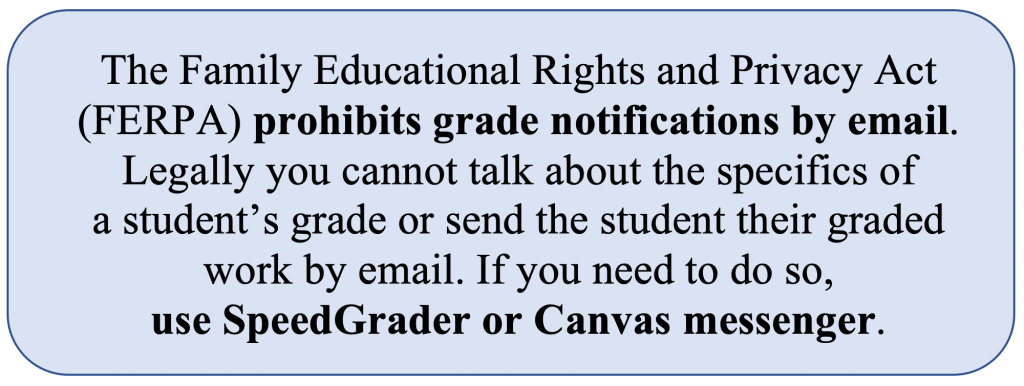
You may also add comments and upload scans of a student’s work through SpeedGrader.
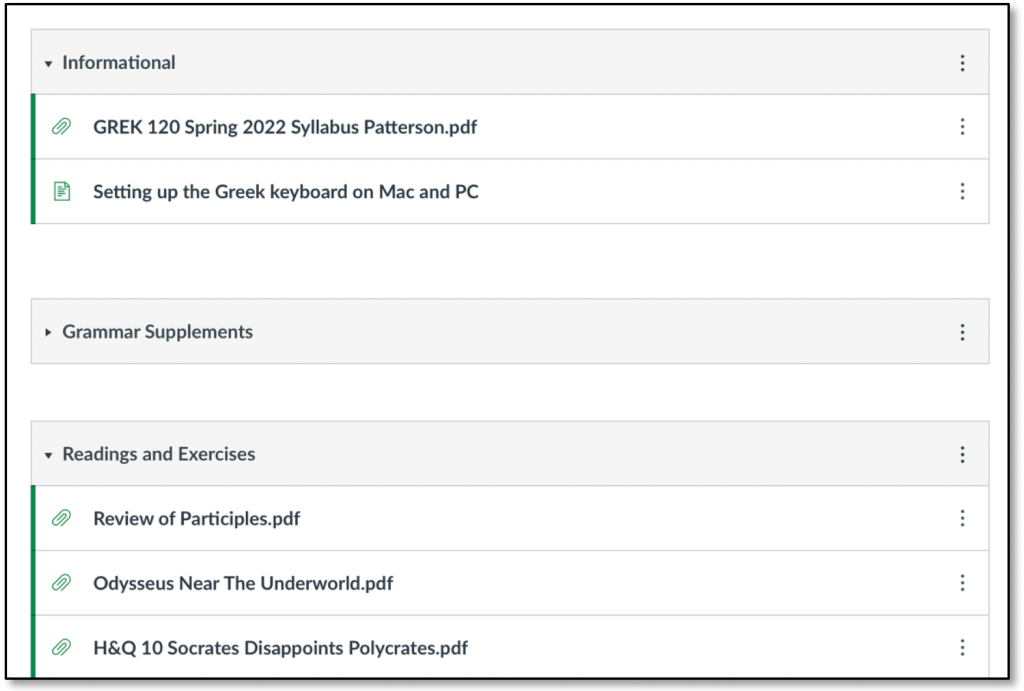
As for course documents, use Modules to organize and present them. As far as I am aware, there is no good way to organize the Files page, where your uploaded docs are stored. Modules lets you control what students see and how, and you can still link to docs in your files in an announcement (see above). This is how the Modules page for my GREK 120 (Spring 2021) looked:
If you have a more involved grading situation than we find in the typically small language classroom, perhaps check out Gradescope and Dr. Natalia Córdova Sánchez’s lighting talk on it here.
—James F. Patterson, 12/23
 Classics Teaching